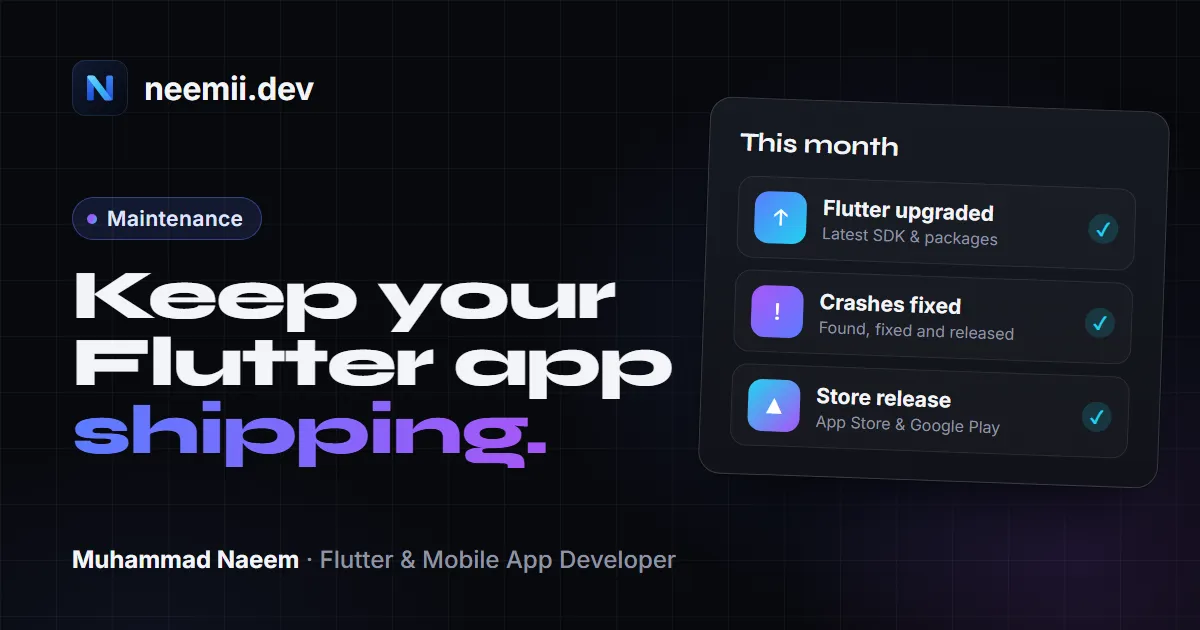
A shipped app is not a finished app. You can leave the code untouched for a year and still find that you can’t publish an update, that a login flow stopped working on the newest iPhone, or that Google Play has quietly stopped showing your app to people with new phones.
This post is for founders who want to know what they are paying for after launch, and for developers who want a checklist they can actually follow. It covers why apps break on their own, what to check monthly, quarterly and yearly, how to upgrade Flutter without wrecking a release, and how to budget for all of it.
Why apps break without code changes
Your code stays the same. Everything around it moves.
Google Play raises the target API level every year
Google Play requires apps to target a recent Android API level, and the bar goes up once a year. According to Google’s target API level requirements page, from August 31, 2026:
- New apps and app updates must target Android 16 (API level 36) or higher to be submitted.
- Existing apps must target Android 15 (API level 35) or higher. Apps below that risk losing visibility to new users on devices running a newer Android version than the app targets.
Developers could request an extension to November 1, 2026. That date has passed, so if your app still targets an older level, you can’t ship an update until you fix it.
Bumping targetSdkVersion is rarely a one-line change. Each Android version changes behaviour for apps that target it: permissions, background work, notifications, edge-to-edge display. The bump also usually pulls in a newer Android Gradle Plugin, Gradle and Kotlin, which pulls in newer plugin versions. Plan it as a small project, not a five-minute fix.
Apple requires a recent Xcode and SDK
Apple sets a minimum Xcode and SDK version for uploads, usually each spring. Apple’s upcoming requirements page says that since April 28, 2026, apps uploaded to App Store Connect must be built with Xcode 26 or later using the iOS 26 SDK (or the matching iPadOS, tvOS, visionOS or watchOS 26 SDK).
In practice this means your Mac, your Xcode, your CocoaPods setup and your Flutter version all have to be recent enough to build with that SDK. If your project has been sitting on an old Flutter version for two years, this is often where it breaks.
Apple also requires a privacy manifest declaring “required reason” APIs your app and its SDKs use. Since May 1, 2024, you need approved reasons for the listed APIs to upload a new or updated app. Old versions of plugins that don’t ship a privacy manifest are a common cause of rejected uploads.
Packages get deprecated or abandoned
A typical Flutter app depends on 20 to 60 packages from pub.dev, directly and indirectly. Over time some of them:
- get marked as discontinued, often with a suggested replacement
- stop supporting the newest Flutter or Dart version
- stop being updated for new Android or iOS requirements, such as a newer Gradle setup or a privacy manifest
The longer you wait, the more of these pile up, and the harder each upgrade becomes because several packages need major-version jumps at once.
Firebase SDKs change
Firebase ships new SDK versions regularly, and the FlutterFire plugins follow. Major releases can remove deprecated APIs, raise the minimum iOS deployment target or Android minSdkVersion, or require a newer Gradle or Xcode. Some Firebase products are also deprecated or replaced over time, with migration deadlines announced in the Firebase docs and release notes. If you use Firebase, read the FlutterFire changelog and the Firebase release notes before major upgrades.
The operating systems change
Every new Android and iOS release changes something: permission prompts, background limits, photo picker behaviour, notification permissions, keyboard and safe-area handling. Usually Flutter and the plugins absorb most of it, but only if you are on versions released after the OS change. An app built two years ago runs on the new OS with two-year-old assumptions.
A real example: a client app hadn’t been touched for over a year. When it needed a quick hotfix, Google Play blocked the release because the app targeted an outdated API level. Raising the target SDK then broke background work and permissions, especially WorkManager jobs and location and notification permissions. To ship what was a one-line text change, we had to upgrade Gradle, replace three abandoned packages and declare explicit foreground service types in
AndroidManifest.xml.
The maintenance checklist
Here’s the routine I’d recommend for a typical live Flutter app. Adjust the frequency to how much the app earns and how fast it changes.
Monthly
- Review crashes. Open Firebase Crashlytics (or whatever you use) and look at new issues, regressions and the crash-free users rate. Fix the top few, not all of them.
- Read store feedback. Check Play Console and App Store Connect reviews, plus Android vitals in Play Console (ANR rate and crash rate). Bad vitals can affect how Play shows your app.
- Check policy emails. Google Play and Apple send policy and requirement notices to the account owner’s email. Someone needs to actually read them. Many “sudden” rejections were announced months before.
- Watch backend and third-party usage. API keys, quotas and billing alerts on Firebase, Google Maps, payment providers and so on.
Quarterly
- Upgrade Flutter to the latest stable release and check your packages (commands below).
- Run
flutter pub outdatedand upgrade what can be upgraded safely. Note anything marked discontinued. - Check dependency security. Dart doesn’t have a built-in audit command, so look at the package pages on pub.dev, the GitHub security advisories for your key packages, and your native dependencies (Gradle and CocoaPods). Prioritise anything that touches auth, payments, networking or storage.
- Update native tooling: Android Gradle Plugin, Gradle wrapper, Kotlin, Xcode and CocoaPods.
- Test on real devices, including at least one older, low-end Android phone and the newest iOS version.
- Re-check privacy declarations whenever SDKs change. If you added or upgraded an analytics, ads or crash-reporting SDK, your Google Play Data safety form and App Store App Privacy details may no longer be accurate. Also make sure the iOS build still includes the privacy manifests that the SDKs ship.
Yearly
- Bump the Android target SDK to meet the Google Play requirement before the deadline, not after. Google usually announces the next level well in advance on the requirements page.
- Build with the Xcode version Apple requires for uploads, and raise the iOS deployment target if your plugins need it.
- Check certificates, keys and profiles. Apple distribution certificates and provisioning profiles expire, so put the expiry dates in a calendar. If you send push notifications on iOS with an older APNs certificate (
.p12), it also expires; an APNs auth key (.p8) avoids that yearly renewal. Check your Android upload key setup in Play App Signing too, and make sure more than one person knows where the keystore and passwords live. - Renew the Apple Developer Program membership. If it lapses, your apps are removed from the App Store.
- Refresh the store listing. Update screenshots if the UI changed, check the description still matches the app, and review the age rating and content questionnaires if the stores ask again.
- Review the privacy policy against what the app actually collects today.
- Do one major-version pass on packages that you skipped in quarterly upgrades because they had breaking changes.
My rule for client apps: I never move a production app to a
.0Flutter release. I wait for the first or second patch (.1or.2), so early plugin and ecosystem regressions are fixed first. Dependencies get a scheduled quarterly check, unless a critical security patch or a Google Play or App Store deadline comes first. The Flutter version is pinned with FVM, so the whole team builds with exactly the same SDK.
How to upgrade Flutter safely
Upgrades go wrong when they are done on main, on the day of a release, with no tests. Here is the process I’d follow.
1. Work on a branch
git checkout -b chore/flutter-upgrade
flutter --version
Write down the current Flutter and Dart versions. If something goes badly wrong, you know exactly where to go back to.
2. Read the breaking changes first
Flutter publishes a breaking changes and migration guide for each release. Skim every release between your current version and the target version, not just the newest one. If you are jumping several releases, this list is the difference between a one-hour upgrade and a lost week.
3. Upgrade Flutter and packages
flutter upgrade
flutter pub outdated
flutter pub upgrade
flutter pub upgrade only moves packages within the version ranges in your pubspec.yaml. To see and apply major-version upgrades:
flutter pub upgrade --major-versionsThis rewrites the constraints in pubspec.yaml. Do it in small batches if you have many packages, and read each major package’s changelog. A major version bump is the package author telling you something broke.
The official upgrade guide covers channels and switching versions. If you maintain several apps on different Flutter versions, a version manager such as FVM saves a lot of switching.
4. Apply automated fixes
Many Flutter and Dart deprecations come with automated migrations. Preview them, then apply:
dart fix --dry-run
dart fix --apply
flutter analyze
dart fix won’t catch everything, but it handles a lot of renamed parameters and deprecated APIs. Fix the remaining flutter analyze warnings before moving on, especially deprecation warnings, because those are next year’s errors.
5. Update the native side
For Android, check the versions of the Android Gradle Plugin and Kotlin in android/settings.gradle (or settings.gradle.kts), and the Gradle wrapper in android/gradle/wrapper/gradle-wrapper.properties. Newer Flutter templates and plugins expect newer versions here, and the build error will usually tell you the minimum. Then set your targetSdk and compileSdk in android/app/build.gradle (or .kts).
For iOS:
cd ios
pod repo update
pod install
cd ..
If pod install fails after an upgrade, deleting ios/Podfile.lock and the ios/Pods folder and running it again often clears version conflicts. Raise the platform version at the top of the Podfile if a plugin requires it.
Then do a clean build on both platforms:
flutter clean
flutter pub get
flutter build appbundle --release
flutter build ipa --release
6. Test on real devices
Run your tests:
flutter testThen install release builds on real devices. Emulators won’t show you everything: camera, push notifications, in-app purchases, deep links, biometrics and background behaviour all need a real phone. Walk through the core flows: sign up, log in, the main feature, payment if there is one, and push notifications.
7. Release in stages
On Google Play, use a staged rollout and watch Crashlytics and Android vitals for a day or two before going to 100%. On iOS, phased release does a similar job for automatic updates. If crashes spike, you can halt the rollout instead of shipping the problem to everyone.
What maintenance costs
The common rule of thumb is that yearly maintenance costs 15–20% of the original build cost. I use the same figure in my Flutter app development cost guide. It is a planning heuristic, not a measured fact. Your real number depends on:
- How many third-party SDKs you use. Every SDK is something that can break or need an upgrade. Payments, maps, ads and analytics add the most work.
- How far behind the app already is. Skipping a year of upgrades doesn’t save that work; it stacks it up. Upgrading across many Flutter releases and several major package versions at once usually takes longer than doing it in steps.
- Test coverage. With good automated tests, an upgrade is mostly running commands and checking results. Without them, every upgrade means a full manual test pass.
- Backend changes. If the API changes, the app has to change with it.
- New features. Maintenance usually means keeping what exists working. New features are extra and should be budgeted separately.
On a $40,000 app, 15–20% is roughly $6,000–$8,000 a year. Some years cost less, some years cost more (a big target SDK bump plus a Firebase major version in the same year, for example). If you don’t know your build cost yet, the app cost calculator gives you a range to start from.
Doing it in-house vs. paying for it
If you have a developer on the team, maintenance can be a few days each quarter on their calendar. The risk is that it always loses to feature work until a store deadline forces it.
If you don’t, a maintenance plan with a fixed scope is usually cheaper than paying for emergency fixes when an update is rejected. Whoever does it, make sure you own the accounts: Play Console, App Store Connect, Firebase, the signing keys and the source code repository should be in your company’s name, not a freelancer’s personal account.
The short version
- Apps break without code changes because store rules, OS versions, SDKs and packages keep moving.
- Google Play raises the target API level every year. Apple raises the minimum Xcode and SDK version for uploads.
- Check crashes and policy emails monthly, upgrade Flutter and packages quarterly, and bump target SDK, Xcode, certificates and store listings yearly.
- Upgrade on a branch, read the breaking changes, run
dart fix --apply, update the native side, and test release builds on real devices. - Budget roughly 15–20% of the build cost per year as a starting point.
Need someone to keep your app updated?
I’ve built and shipped 10+ Flutter apps, and I maintain apps for clients after launch: Flutter and package upgrades, target SDK and Xcode requirements, crash fixes and store submissions. If your app is falling behind or an update just got rejected, see my app maintenance service or get in touch and tell me what’s going on.
Need a Flutter app built? Tell me about your project, or see case studies of apps I’ve worked on.