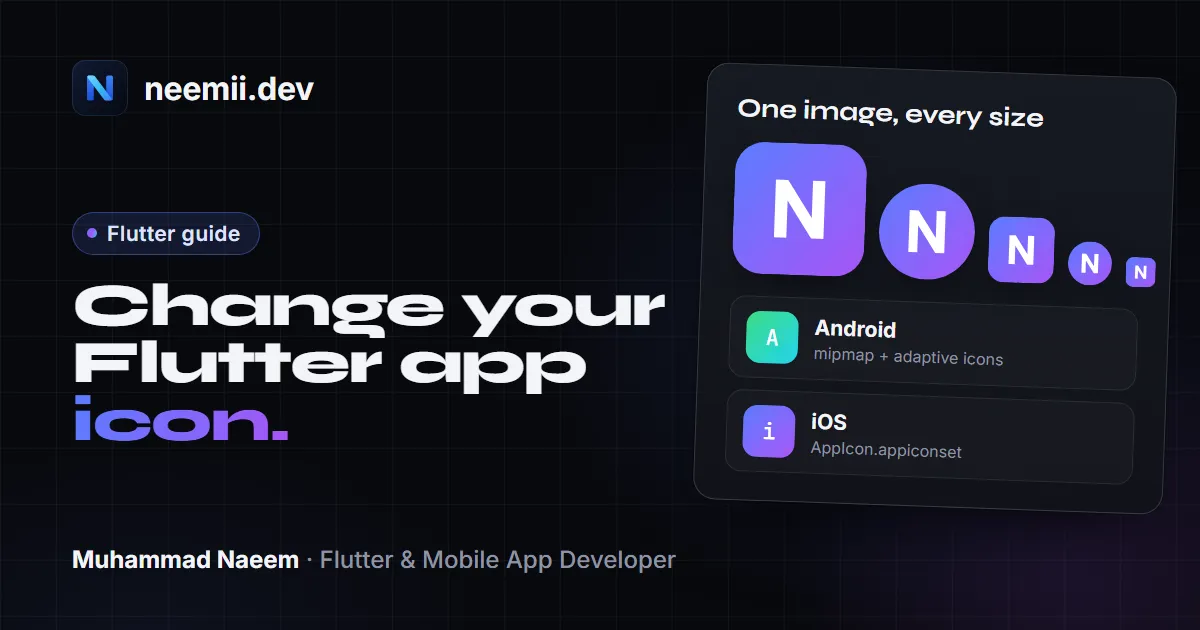
Every new Flutter project ships with the blue Flutter logo as its launcher icon. Replacing it looks like a five-minute job, and the basic version is. But Android wants adaptive icons with a safe zone, iOS rejects icons with transparency, the web has its own maskable icons, and the stores want separate listing images on top of all that.
This post covers where the icons live, the sizes and rules for each platform, how to do it with flutter_launcher_icons, and why your new icon sometimes doesn’t show up after you build.
Start with one good source image
Whatever method you use, start from a single square PNG at 1024 × 1024 px:
- Square, no rounded corners. Android and iOS apply their own masks. If you round the corners yourself, you get a rounded square inside a rounded square.
- No transparency for iOS. You can keep a transparent version for the Android adaptive foreground, but the iOS icon has to be fully opaque.
- Keep the logo away from the edges. Android adaptive icons and web maskable icons crop the outer area. A logo that touches the edges will be cut off.
- Simple shapes. The icon is shown at 48 px on some screens. Thin lines and small text disappear.
Where Flutter keeps the default icons
A new project created with flutter create has its icons in these places:
| Platform | Location |
|---|---|
| Android | android/app/src/main/res/mipmap-mdpi … mipmap-xxxhdpi/ic_launcher.png |
| iOS | ios/Runner/Assets.xcassets/AppIcon.appiconset/ (PNGs plus Contents.json) |
| Web | web/favicon.png and web/icons/ (Icon-192.png, Icon-512.png, Icon-maskable-192.png, Icon-maskable-512.png) |
Android points to the icon from android/app/src/main/AndroidManifest.xml:
<application
    android:label="my_app"
    android:icon="@mipmap/ic_launcher">
As long as you keep the file name ic_launcher, you can replace the PNGs and the manifest doesn’t need to change.
Android: legacy icons and densities
Android picks an icon based on the screen density. The legacy (non-adaptive) launcher icon is 48 dp, which works out to these pixel sizes:
| Folder | Density | Size |
|---|---|---|
mipmap-mdpi |
1x | 48 × 48 |
mipmap-hdpi |
1.5x | 72 × 72 |
mipmap-xhdpi |
2x | 96 × 96 |
mipmap-xxhdpi |
3x | 144 × 144 |
mipmap-xxxhdpi |
4x | 192 × 192 |
The manual way: export your icon at these five sizes, name each one ic_launcher.png, and overwrite the files in the matching folders. That’s enough for older devices, but on Android 8.0 and above a plain PNG icon can end up shrunk inside a white circle or squircle on some launchers. That’s what adaptive icons fix.
Android: adaptive icons (API 26+)
Since Android 8.0 (API 26), a launcher icon can be built from two layers: a background and a foreground. The launcher masks them into whatever shape the device uses (circle, squircle, rounded square) and can animate the layers separately.
The numbers from the Android adaptive icon guide:
- Each layer is 108 × 108 dp.
- The mask shows roughly the inner 72 × 72 dp. The outer 18 dp on each side is used for parallax and masking effects.
- Your logo should sit inside the central 66 × 66 dp safe zone, so no mask shape cuts it.
In pixels, the foreground layer is 108 px at mdpi, up to 432 px at xxxhdpi (108 × 4). The most common mistake is putting the 48 dp legacy icon artwork straight into the foreground layer. It fills the whole 108 dp canvas, and the mask crops the logo. Scale the logo down so it fits the safe zone, with transparent padding around it.
From client work: I’ve had a client’s logo lose its corners to a phone maker’s mask. The permanent fix is to keep every important part of the logo inside the central 66 dp safe zone of the 108 dp canvas, by adding transparent padding to the image before export (in Figma or Canva) or scaling it down in the generator. Never let the logo run to the edge of the canvas.
To add an adaptive icon by hand:
- Put the foreground PNGs (transparent background) in each
mipmap-*folder asic_launcher_foreground.png. - Add a background colour in
android/app/src/main/res/values/colors.xml:
<?xml version="1.0" encoding="utf-8"?>
<resources>
    <color name="ic_launcher_background">#FFFFFF</color>
</resources>- Create
android/app/src/main/res/mipmap-anydpi-v26/ic_launcher.xml:
<?xml version="1.0" encoding="utf-8"?>
<adaptive-icon xmlns:android="http://schemas.android.com/apk/res/android">
    <background android:drawable="@color/ic_launcher_background" />
    <foreground android:drawable="@mipmap/ic_launcher_foreground" />
</adaptive-icon>
The -v26 qualifier means devices on API 26 and above use this XML, while older devices fall back to the ic_launcher.png files. Keep both. The background can also be an image instead of a colour; reference a drawable or mipmap instead of @color/....
Themed (monochrome) icons on Android 13
Android 13 (API 33) added themed icons: when the user turns on themed icons, the launcher tints app icons to match the wallpaper colours. Your app only takes part if the adaptive icon includes a monochrome layer:
<adaptive-icon xmlns:android="http://schemas.android.com/apk/res/android">
    <background android:drawable="@color/ic_launcher_background" />
    <foreground android:drawable="@mipmap/ic_launcher_foreground" />
    <monochrome android:drawable="@mipmap/ic_launcher_monochrome" />
</adaptive-icon>
The monochrome image is a single-colour silhouette of your logo on a transparent background, same 108 dp canvas and safe zone as the foreground. Only the alpha channel matters; the system supplies the colour. Without this layer, your icon shows in its normal colours while the rest of the home screen is tinted, which makes it stand out in a bad way.
iOS: the asset catalog and its rules
On iOS, icons live in an asset catalog: ios/Runner/Assets.xcassets/AppIcon.appiconset/. The folder contains the PNGs and a Contents.json that tells Xcode which file is which size, idiom and scale. A shortened example:
{
  "images" : [
    {
      "size" : "60x60",
      "idiom" : "iphone",
      "filename" : "Icon-App-60x60@2x.png",
      "scale" : "2x"
    },
    {
      "size" : "1024x1024",
      "idiom" : "ios-marketing",
      "filename" : "Icon-App-1024x1024@1x.png",
      "scale" : "1x"
    }
  ],
  "info" : {
    "version" : 1,
    "author" : "xcode"
  }
}
If you replace the PNGs by hand, keep the exact file names and pixel sizes that Contents.json lists, or Xcode will warn about unassigned or wrong-sized images. The easier manual route is to open ios/Runner.xcworkspace in Xcode, select Assets → AppIcon, and drag your images into the slots.
The rules that matter:
- The 1024 × 1024 marketing icon is required. It’s the
ios-marketingentry, and App Store Connect uses it for your store listing. You don’t upload the App Store icon separately; it comes from the asset catalog in your build. - No transparency, no alpha channel. An icon with an alpha channel fails validation when you upload the build. “No transparent pixels” isn’t enough; a PNG exported with an alpha channel can still be flagged. Export without alpha, or flatten it onto a solid background.
- No pre-rounded corners. iOS applies its own rounded mask. Give it a full square.
Apple’s app icon guidelines cover the design side.
Web: favicon, PWA and maskable icons
Flutter web uses web/favicon.png for the browser tab, and the icons in web/icons/ for the PWA install (home screen, app launcher). They’re listed in web/manifest.json:
"icons": [
  { "src": "icons/Icon-192.png", "sizes": "192x192", "type": "image/png" },
  { "src": "icons/Icon-512.png", "sizes": "512x512", "type": "image/png" },
  { "src": "icons/Icon-maskable-192.png", "sizes": "192x192", "type": "image/png", "purpose": "maskable" },
  { "src": "icons/Icon-maskable-512.png", "sizes": "512x512", "type": "image/png", "purpose": "maskable" }
]
Maskable icons work like Android adaptive icons: the platform crops them to its own shape, so the logo needs to sit in the central safe area with a solid background behind it. A regular icon used as maskable gets its edges cut off. The web.dev guide to maskable icons explains the safe zone. Also update theme_color and background_color in the same manifest.json so the install splash matches your brand.
The easy way: flutter_launcher_icons
Doing all of the above by hand for every app, and again every time the logo changes, gets old fast. The flutter_launcher_icons package generates the Android, iOS and web icons from one source image and writes them into the right folders.
Add it as a dev dependency:
flutter pub add dev:flutter_launcher_iconsThen add the config, either under a flutter_launcher_icons key in pubspec.yaml or in a separate flutter_launcher_icons.yaml next to it:
flutter_launcher_icons:
  image_path: "assets/icon/icon.png"
  android: true
  ios: true
  min_sdk_android: 21
  remove_alpha_ios: true
  background_color_ios: "#FFFFFF"

  adaptive_icon_background: "#FFFFFF"
  adaptive_icon_foreground: "assets/icon/icon_foreground.png"
  adaptive_icon_monochrome: "assets/icon/icon_monochrome.png"

  web:
    generate: true
    image_path: "assets/icon/icon.png"
    background_color: "#FFFFFF"
    theme_color: "#0175C2"
What the main options do:
image_path: the source image for all platforms. You can override it per platform withimage_path_androidandimage_path_ios.android/ios:truereplaces the default icon. A string such as"launcher_icon"generates a new icon with that name instead and leaves the default files alone.falseskips the platform.adaptive_icon_background: a hex colour or an image path.adaptive_icon_foreground: the transparent foreground image. Make this a version of your logo with padding, not the full-bleed icon, or it gets cropped. There’s alsoadaptive_icon_foreground_insetif you need to adjust the padding.adaptive_icon_monochrome: the Android 13 themed icon layer.remove_alpha_ios: strips the alpha channel from the iOS icons, so the App Store upload doesn’t fail.background_color_iossets the colour used to fill transparent areas.min_sdk_android: your app’s minimum Android SDK (default 21).web: generates the favicon and the PWA icons, and sets the manifest colours.
The package also supports windows and macos blocks if you ship desktop builds.
Run it:
flutter pub get
dart run flutter_launcher_icons
If you use a config file with a different name, pass it with -f. For flavors, the package picks up files named flutter_launcher_icons-<flavor>.yaml. The README has the full option list; check it against the version you install, since options get added between releases.
Run git diff afterwards and look at what changed. You should see new PNGs in the mipmap-* folders, an ic_launcher.xml in mipmap-anydpi-v26 if you set the adaptive options, the iOS asset catalog, and the web icons.
Without a package: generate the files in the browser
If you don’t want another dev dependency, or you just want to see the icons on every mask shape before committing them, I built a free app icon generator. You upload one image and download a zip that uses Flutter’s folder layout: Android mipmap-* folders with the adaptive icon XML, the iOS AppIcon.appiconset with Contents.json and no alpha, the web icons including maskable ones, and the Play Store and App Store images. It runs in your browser, so the image isn’t uploaded anywhere. Unzip it over your project and you’re done.
Which to use? If you want the icon setup to live in the repo, so anyone on the team can change the logo and regenerate with one command, use flutter_launcher_icons. That’s the better long-term choice for a team project. The generator is faster for a one-off, for checking the result visually before you commit, or for producing the store listing images, which the package doesn’t make.
What I use: in client apps I use flutter_launcher_icons. The configuration lives in the repository, so anyone on the team can regenerate every icon with one command when the logo changes. The online generator is handy for a quick preview or a project without the package.
Change the app name while you’re at it
The name under the icon is separate from the icon itself:
- Android:
android:labelon the<application>tag inandroid/app/src/main/AndroidManifest.xml. - iOS:
CFBundleDisplayNameinios/Runner/Info.plist.
<key>CFBundleDisplayName</key>
<string>My App</string>
This only changes the name on the home screen. The name on the store listing is set in Play Console and App Store Connect.
Why the icon doesn’t change
You replaced the icons, rebuilt, and the old Flutter logo is still there. The usual causes:
- Hot reload and hot restart don’t touch native resources. Icons are part of the Android and iOS projects, not your Dart code. Stop the app and run a full build.
- The launcher caches icons. Android launchers and the iOS home screen keep the old icon in a cache. Uninstall the app from the device or emulator, then install it again.
- Stale build output. Run
flutter clean, thenflutter pub get, then build again. - The adaptive XML wins. On API 26+, if
mipmap-anydpi-v26/ic_launcher.xmlexists, Android uses it and ignores your newic_launcher.pngfiles. If you only replaced the PNGs, you’ll still see the old adaptive icon. Update or remove the foreground layer too. - The manifest points somewhere else. If you used a custom name like
launcher_icon, check thatandroid:iconinAndroidManifest.xmlpoints to@mipmap/launcher_icon.
Store listing icons
The stores have their own requirements, separate from the icon inside the app:
- Google Play: a 512 × 512 px, 32-bit PNG (alpha allowed), up to 1 MB, uploaded in Play Console under the store listing. Upload a full square; Google Play applies the rounded corners and shadow itself. See Google’s icon design specifications.
- App Store: the 1024 × 1024 icon from your asset catalog. There’s no separate upload; App Store Connect takes it from the build. Same rules as before: no alpha, no rounded corners.
If you’re getting ready to release, my post on publishing a Flutter app to the App Store and Google Play covers the rest of the store checklist.
Summary
- Start from one square 1024 × 1024 PNG with no rounded corners, and keep the logo away from the edges.
- Android needs legacy icons at five densities plus an adaptive icon (108 dp layers, 66 dp safe zone), and a monochrome layer for Android 13 themed icons.
- iOS needs a full asset catalog with a 1024 marketing icon and no alpha channel.
- Web needs a favicon, 192 and 512 icons, and maskable versions.
- Use
flutter_launcher_iconsto keep it all in config, or the app icon generator for a quick zip in Flutter’s layout. - If the icon doesn’t update, uninstall the app, run
flutter cleanand do a full build.
An icon is a small part of an app, but it’s the first thing users see in the store and on their phone. If you’re building a Flutter app and want someone who has shipped more than ten of them to handle it end to end, icons and store release included, tell me about your project.
Need a Flutter app built? Tell me about your project, or see case studies of apps I’ve worked on.